QR codes are everywhere — on restaurant menus, product packaging, business cards, and event posters. But most free QR code generators online either slap a watermark on your download, expire your code after 30 days, or lock the best features behind a paywall.
Ededin QR Gen at qr.ededin.com changes that completely.
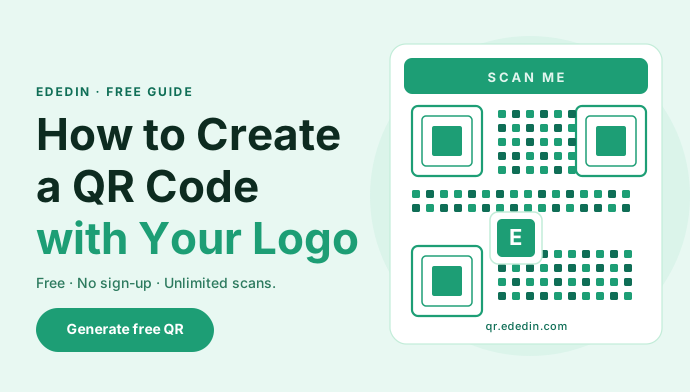
It is a 100% free QR code generator that lets you upload your own logo, pick a custom frame, choose your style, and download a high-resolution PNG, vector SVG, or PDF — with no sign-up, no watermark, and no expiry on scans. Ever.
This step-by-step guide shows you exactly how to create a professional, branded QR code in under two minutes.
Why Choose Ededin QR Gen?
Before we get into the steps, here is why Ededin QR Gen stands out from every other free tool online:
- Logo upload support — Embed your brand logo directly inside the QR code
- Custom frame designs — Add a frame with a call-to-action like "Scan Me" around your QR
- Multiple style options — Customise dot patterns and corner styles to match your brand identity
- Three export formats — Download as PNG (for digital use), SVG (for print, scales to any size), or PDF (print-ready)
- Unlimited scans — Your QR code never stops working
- No expiry — Your code remains active forever, not just for 30 days
- No sign-up required — Open the tool and start immediately
This makes Ededin QR Gen the ideal choice for small business owners, marketers, designers, restaurateurs, and anyone who needs a professional QR code without spending a rupee.
How to Create a QR Code with Your Logo — Step by Step
Step 1: Open Ededin QR Gen
Go to qr.ededin.com in any browser on your phone or desktop. No account creation, no email verification — the tool loads instantly and is ready to use.
Step 2: Enter Your URL or Content
In the input field, type or paste whatever you want your QR code to link to. This can be:
- A website URL (e.g. your business homepage or product page)
- A WhatsApp chat link (e.g.
https://wa.me/91XXXXXXXXXX) - A Google Maps location link
- A Google Review link
- A YouTube video
- A plain text message or contact details (vCard)
Whatever someone should see when they scan your QR — paste it here.
Step 3: Customise Your QR Code Style
This is where Ededin QR Gen goes beyond basic generators. You can personalise the appearance of your QR code to match your brand:
- Dot style — Choose from square, rounded, dots, or other patterns for the QR body
- Corner style — Change the shape of the corner squares for a softer or bolder look
- Colours — Set a foreground and background colour that fits your brand palette
A well-styled QR code is more likely to get scanned because it looks intentional and trustworthy rather than generic.
Step 4: Upload Your Logo
Click the "Upload Logo" option and select your brand logo image from your device. Ededin QR Gen places your logo at the centre of the QR code automatically.
Tips for the best logo result:
- Use a PNG file with a transparent background for a clean look
- Keep the logo simple — detailed logos can make the QR harder to scan
- Square or circular logos work best in the centre of a QR code
Your logo makes the QR instantly recognisable as yours — even before someone scans it.
Step 5: Choose a Frame
Select a custom frame from the available frame designs. Frames surround your QR code with a styled border, and many include a built-in call-to-action text such as:
- "Scan Me"
- "Scan to Order"
- "Visit Our Website"
Frames significantly improve scan rates on print materials like posters, menus, flyers, and packaging because they guide the viewer's eye and make the purpose of the QR code obvious.
Step 6: Download Your QR Code
Once you are happy with your design, click the download button and choose your format:
| Format | Best For |
|---|---|
| PNG | Social media, websites, digital display, email |
| SVG | Print materials — scales to any size without losing quality |
| Sending to printers, brochures, business cards |
For anything going to print — banners, business cards, menus — always download the SVG format. It is a vector file that stays sharp at any size, from a small sticker to a large hoarding.
Where Can You Use Your Ededin QR Code?
Once downloaded, your branded QR code is ready for:
- Restaurant menus — Link to your digital menu or Zomato/Swiggy page
- Business cards — Link to your portfolio, LinkedIn, or WhatsApp
- Product packaging — Link to product details, warranty registration, or tutorials
- Event posters — Link to ticket booking or event schedule
- Storefronts — Link to Google Reviews or UPI payment page
- Social media posts — Share your QR to drive offline-to-online traffic
Because Ededin QR Gen codes never expire and have unlimited scans, you can print them once and use them for years.
Frequently Asked Questions
Is Ededin QR Gen completely free?
Yes. There are no hidden charges, no premium tiers, and no watermarks on your downloads.
Do I need to create an account?
No. Open qr.ededin.com and start generating — no email or sign-up required.
Will my QR code expire?
Never. Your QR code works indefinitely with unlimited scans.
Can I use the QR code for commercial purposes?
Yes. You can use your generated QR codes freely for your business, products, and marketing
materials.
Which download format is best for printing?
Always use SVG for print. It is a vector format that scales to any size without pixelation.
Final Thoughts
Creating a professional, branded QR code no longer requires expensive software or a paid subscription. With Ededin QR Gen, you get logo upload, custom frames, style options, and three download formats — completely free, with no sign-up and no expiry.
Whether you are a restaurant owner, a freelancer, a startup founder, or a marketing professional, Ededin QR Gen gives you everything you need to create QR codes that represent your brand properly.
Try Ededin QR Gen Free
Create your branded QR code in under 2 minutes. No sign-up. No watermark. No expiry.
Create Free QR Code →